How to Publish an App on Google Play and the App Store: A Launch Checklist
Building the app is only half the launch. Here's what Google Play and the App Store require before your app goes live, including the testing rule that catches many first-time Android developers.
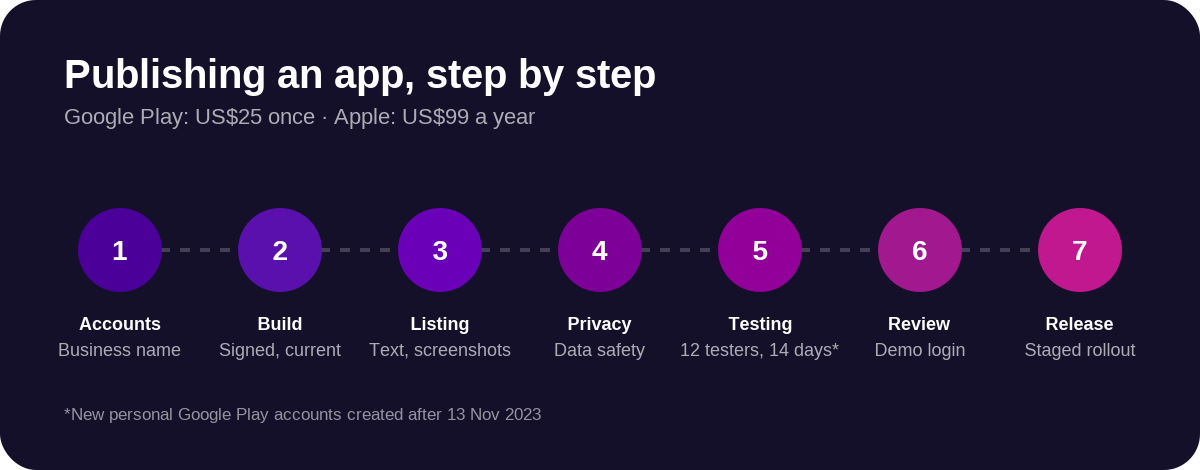
To publish an app, create a Google Play developer account (a one-time US$25 fee) and join the Apple Developer Program (US$99 a year), ideally as an organisation. Prepare the store listing (name, description, screenshots, icon, privacy policy), complete Google Play's Data safety form and Apple's privacy details, and meet technical rules such as Google Play's target API level. New personal Google Play accounts must run a closed test with at least 12 testers for 14 days before production. Then submit for review, fix any issues and release, ideally in stages.
Google Play: US$25 one-time; Apple Developer Program: US$99 per year.
New personal Play accounts need a closed test with 12+ testers for 14 consecutive days before production.
Both stores require a privacy policy and accurate data-collection disclosures.
Publish under an organisation account in your business's name, not a freelancer's.
To publish an app, you need a developer account on each store, a complete store listing, accurate privacy disclosures, an app that meets each store's technical rules and a successful review. Google Play charges a one-time US$25 registration fee; the Apple Developer Program costs US$99 a year. On Google Play, new personal accounts also have to run a closed test with 12 testers for 14 days before going live, a rule that surprises many first-time developers.
This checklist covers both stores in the order you'll need it.
New personal accounts: closed test with 12+ testers for 14 days
Review against the App Review Guidelines
Privacy form
Data safety section
App privacy details
Upload format
Android App Bundle (AAB)
Build uploaded via Xcode or Transporter
Testing tool
Internal, closed and open testing tracks
TestFlight
Step 1: Create developer accounts in your business's name
Choose an organisation account if the app belongs to your business. You'll need business verification (both stores commonly use a D-U-N-S number) and an official website and email.
Google may ask for a government ID and a card in your legal name for verification.
Don't let a freelancer publish under their own account. Transferring an app later is possible but slow. Add your developer as a user on your account instead.
Step 2: Prepare the build
Android: build a signed Android App Bundle and enrol in Play App Signing. Since 31 August 2026, new apps and updates must target Android 16 (API level 36) or higher, with a few form-factor exceptions.
iOS: build with a current version of Xcode, set the bundle ID, version and build numbers, and upload to App Store Connect.
Remove test data, debug logs and placeholder screens. Check the app on real, low-end devices, not just emulators.
Step 3: Write the store listing
Both stores need:
App name and a short subtitle or short description that says what it does
Full description that's accurate and easy to scan
Screenshots for required device sizes (show real screens, not just marketing art)
App icon and, on Google Play, a feature graphic
Category, contact email and website
Privacy policy URL on your own website
Write for people first. Store search reads your title and description, so use the words customers would search, but don't keyword-stuff.
Step 4: Complete the privacy forms
Google Play: fill in the Data safety section: what data you collect, why, whether it's shared and whether it's encrypted. Include data collected by SDKs such as analytics, ads and crash reporting.
Apple: complete the app privacy details in App Store Connect. If users can create an account, Apple's App Review Guidelines require a way to delete that account from within the app.
Both must match what your app actually does. Inaccurate disclosures are a common reason for rejection.
For apps serving Indian users, also follow India's data protection rules for consent and data handling.
Step 5: Test properly
Google Play: use the internal testing track for your team. If you have a personal account created after 13 November 2023, Google requires a closed test with at least 12 testers who stay opted in for 14 consecutive days before you can apply for production access. Plan for this; it adds at least two weeks.
Apple: use TestFlight for internal and external testers.
Test sign-up, login, payments, notifications, deep links and what happens with no internet.
Step 6: Submit for review
Give reviewers a working demo login and notes on any features that need special setup.
Answer content rating questionnaires honestly.
Review times vary. Plan a buffer of several days before any announced launch, more for a brand-new account.
If you're rejected, read the reason carefully, fix it and reply in the review notes. Most rejections are about missing information or a broken flow rather than the app idea itself.
Step 7: Release and monitor
Use a staged rollout on Google Play and phased release on the App Store to catch problems early.
Watch crash reports, ratings and reviews daily for the first weeks.
Reply to reviews, especially negative ones.
Plan regular updates: both stores expect apps to stay current with new OS versions and policies.
Pre-launch checklist
Organisation developer accounts in your business's name
Signed release build, current target API level (Android)
Store listing: name, descriptions, screenshots, icon, category
Privacy policy live on your website
Data safety (Google) and privacy details (Apple) completed accurately
In-app account deletion if users can sign up
Closed test completed if your Play account requires it
Demo login and review notes ready
Staged rollout plan and monitoring in place
The bottom line
Publishing an app takes developer accounts in your business's name, a clear store listing, honest privacy disclosures, the right technical settings and a review buffer. If you're on a new personal Google Play account, budget at least two extra weeks for the closed-testing rule.
Google Play charges a one-time US$25 registration fee. The Apple Developer Program costs US$99 per membership year, with local pricing shown during enrolment. Development, design and maintenance costs are separate.
What is the 12 testers rule on Google Play?
+
Personal developer accounts created after 13 November 2023 must run a closed test with at least 12 testers who stay opted in for 14 consecutive days before they can apply for production access. Organisation accounts aren't subject to this requirement.
Should I use a personal or organisation developer account?
+
For a business app, use an organisation account in your company's name. It shows your business as the developer, avoids the personal-account testing rule on Google Play and keeps ownership with you. Organisation accounts need business verification, such as a D-U-N-S number.
How long does app review take?
+
It varies. Many Apple reviews finish within a day or two, and Google Play reviews often take a few days, but both can take longer for new accounts or apps that need extra checks. Plan a buffer before any launch date.
Why do apps get rejected?
+
Common reasons include crashes or broken features, missing login details for reviewers, inaccurate privacy disclosures, missing account deletion for apps with sign-up, placeholder content and misleading screenshots or descriptions.
Articles are written and reviewed by the Incinc Media team, the people who plan, design, build and market websites, apps and campaigns for businesses from our head office in Mumbai and our branch offices in Faridabad and Greater Noida. We write about the questions clients ask us every week.
App quotes vary even more than website quotes, because an app is really three products: the app, the backend and the admin panel. Here's how to understand the price and avoid paying for features you don't need yet.